Editor
The editor is where you build a conversation: a canvas of connected nodes that runs your flow. Conversations can be pushed as a voice channel, or an SMS channel (coming soon).
Anatomy of the editor
Open any conversation to edit it. The workspace has a few key regions:
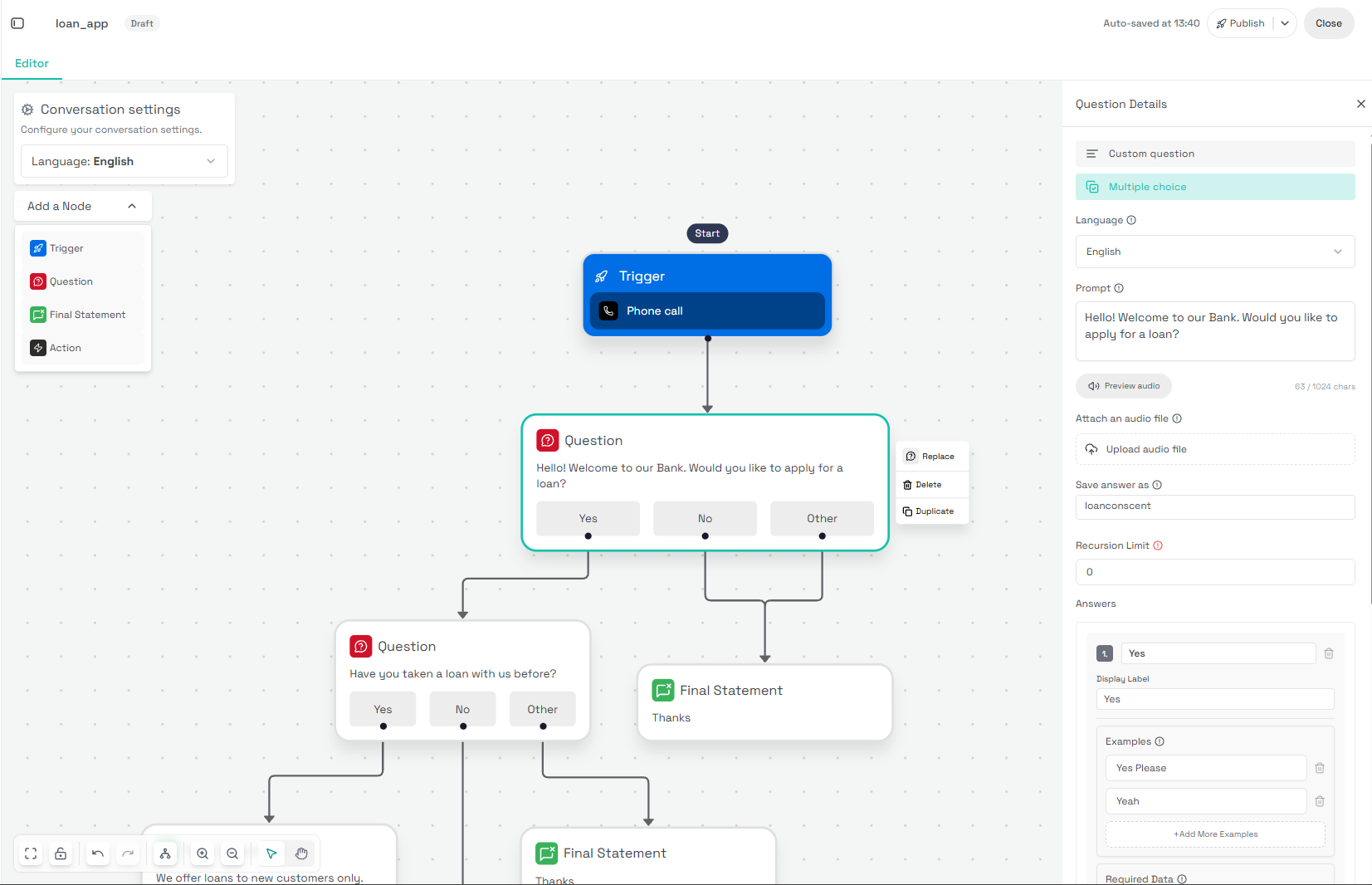
| Region | What it's for |
|---|---|
| Header | The conversation name, its Draft state, Publish, and Close. |
| Conversation settings | Flow-wide options such as the Language. |
| Add a Node | The menu you drop new nodes from onto the canvas. |
| Canvas | The flow itself, starting at Start and branching through your nodes. |
| Controls | Zoom, fit, pan, and undo/redo along the bottom. |
Node types
Every flow is built from a small set of nodes. Combine them to handle anything from a one-line autoresponder to a multi-branch, AI-routed call.
Trigger
Starts the flow, for example a Phone call or an inbound SMS. Every flow has exactly one.
Question
Asks the contact something and branches on their answer (e.g. Yes / No / Other).
Final Statement
A closing message that ends a branch of the conversation.
Action
Runs an operation mid-flow, like updating the contact or calling out to your systems.
Every flow begins at Start with a single Trigger; each branch ends at a Final Statement. A flow can have many branches but only one trigger.
Trigger
Every flow starts with exactly one Trigger. It decides how and when a conversation begins, who it reaches (the Audience, one or more contact groups), and the organization phone number it runs on. Pick a trigger type from Trigger Details:
Conversation starts when Pindo receives an HTTP request at the flow's webhook URL. Use it to launch a conversation from your own systems.
| Field | Description |
|---|---|
| URL | The webhook to call, e.g. https://api.pindo.io/flow/event/start/apiTr_…. Use Copy to copy it. |
| Headers | Content-Type: application/json and an Authorization token (hidden; use the eye to reveal, or Copy). |
| Organization phone numberrequired | The number the conversation runs on. |
| Audiencerequired | The contact group(s) to reach. Use Refresh to reload your groups. |
Conversation starts when a phone call happens on your number.
| Field | Description |
|---|---|
| Phone number to receive calls onrequired | The number that answers calls. |
| Audience | The contact group(s) to reach. |
| Call eventrequired | Which event starts the flow: A call is answered, End of a call, or Missed call. |
Complete the required fields, then Confirm to activate the trigger.
Conversation starts automatically on a schedule. Set the organization phone number and Audience, then choose a Schedule type:
| Schedule type | What it does |
|---|---|
| One time | Runs once at a set date and time. |
| Recurring | Repeats on an interval. See below. |
| Smart Schedule | Runs per contact, based on a date field. See below. |
Recurring: set Repeats (e.g. every 1 daily) and one or more times under At (+ Add another time). Choose when it Ends: Never, On a date/time, or After N runs. A Summary and the Next 5 executions preview confirm the schedule.
Smart Schedule: runs relative to a Contact Date Field required, so each contact is reached at their own time.
Smart Schedule suits reminders: point it at a contact date field (for example, one holding each contact's next reminder date) and every contact is reached on their own date.
Start a conversation from an inbound SMS. Coming soon.
Start a conversation from another conversation flow. Coming soon.
Question
A Question node asks the contact something and branches on their reply. Open Question Details and pick a question style. Both share a few fields:
| Field | Description |
|---|---|
| Language | The language the prompt is spoken/written in. |
| Promptrequired | What you ask the contact (up to 1024 chars). Preview audio to hear it. |
| Attach an audio file | Optionally play your own recording instead of synthesized speech. |
| Save answer asrequired | Names the variable that stores the reply, e.g. @variable.<name>. |
An open-ended question where the contact answers freely and you capture the response in Save answer as. Use it when there's no fixed set of options, like a name, amount, or reason.
Routes the conversation down a branch per answer. Set a Recursion Limit (how many times to re-ask on an unclear reply), then define the Answers. Each answer has:
| Field | Description |
|---|---|
| Display Label | The answer's name on the node and its outgoing branch. |
| Examples | Sample phrasings that map to this answer, used to capture the contact's intent. |
| Required Data | Fields the contact must provide for this answer before the flow moves on. |
Answers aren't limited to Yes / No / Other. Name them anything (e.g. Apply, Check balance, Talk to agent). The Examples teach Pindo to match what the contact actually says to the right branch.
Add branches with + Add condition, and keep a Fallback option (e.g. Other) to catch anything that doesn't match.
Final Statement
A Final Statement delivers a closing message and ends that branch of the conversation: a confirmation, a thank-you, or a hand-off line. Open Statement Details to configure it:
| Field | Description |
|---|---|
| Language | The language the statement is spoken/written in. |
| Statement textrequired | The closing message (up to 1024 chars). Preview audio to hear it, and use @ mentions to personalize. |
| Attach an audio file | Optionally play your own recording instead of synthesized speech. |
Personalize the close with variables and context, e.g. Thanks @contact.name, your @variable.intent request is received.
Action
An Action runs an operation mid-flow: call an API, update a contact, request a payment, or send an SMS. Open Action Details and choose one of four action types:
Calls an external HTTP endpoint and (optionally) branches on the response. Pick an HTTP Method (POST, GET, PUT, or DELETE), set the URL required, and use Test to try the call.
Configure the request in four collapsible sections:
| Section | What it holds |
|---|---|
| Body | The request payload sent with the call. |
| Headers | Name/value pairs (e.g. Accept: /, Content-Type: application/json, Authorization). Use + to add and the bin to remove. Both name and value are required. |
| Parameters | Query key/value pairs appended to the URL. Use + to add more. |
| Capture responses | Store part of the response in a variable. See below. |
Capture responses
Toggle Capture response on, then set Save result as (variable name, min 2 characters). Choose the response shape:
- Json response: set an extractor under Extract value from json response required, e.g.
@json.data.[1].username. Format examples:@json.data.user.name,@json.results.[0].id,@json.contacts.[1].details.email,@json.data.items.[0],@json.[0].value. - Text response: capture the raw response body as text.
Branching on the response
Decide which path the flow takes after the call. Switch between two modes:
| Mode | How the path is chosen |
|---|---|
| Status code | The HTTP status (like 200 or 404) controls which path is taken. |
| Response Variables | The webhook's response content controls which path is taken. |
Define a Condition per branch: a Value to match and a Display label for the outgoing path (e.g. Success). Keep a Fallback option condition (e.g. labelled Fail) to catch everything else.
Acts on the contact in the conversation. Pick a contact operation:
| Operation | What it does |
|---|---|
| Add contact to group | Adds the contact to a Group required. Search and pick from your contact groups. |
| Update contact | Sets a Field required to a Value required. The value can be a literal or a @variable.… mention. Refresh reloads your fields. |
| Archive | Unarchive contact | Moves the contact to or from your Archived list. |
| Remove from group | Takes the contact out of a group. |
| Contact belongs to | Branches on whether the contact is in a given group. |
Requests a mobile-money payment from the contact via Request Mobile Payment.
| Field | Description |
|---|---|
| Telco | The mobile network to charge, e.g. MTN. |
| Country | The contact's country, e.g. Rwanda. |
| Amountrequired | The sum to request: a literal (e.g. 1000) or a @variable, shown in the local currency (e.g. RWF). |
| Noterequired | A payment description shown with the request. |
Sends an SMS mid-conversation via Send message.
| Field | Description |
|---|---|
| Send from | Send as: pick the sender ID the message goes out from. |
| Send to | Either the Caller phone number (the contact in the flow) or one or more Contact groups. |
| Contact groups | When sending to groups, search and select them. Refresh reloads your groups. |
| Compose your message | The message body. Personalize it with @contact.… and @variable.… mentions. |
Variables & context
The editor exposes two kinds of values you can reference with @ mentions: variables, which the flow captures as it runs, and context, which comes from the contact.
Variables
A variable holds a value the conversation captured, typically a Question's answer. In a Question node, set Save answer as to name the variable; reference it later as @variable.<name>.
# Question node - "Save answer as":
visited_or_trained

# Later, reference the captured answer:
@variable.visited_or_trained
@variable.visited_or_trained.intent
Use an Action node to persist a variable to a contact field: pick Update contact, choose the Field, and set its Value to a @variable.… mention.
Context
Context is what Pindo already knows about the contact: their name, phone number, and any custom field you've defined. Reference it with @contact.<field>:
Muraho @contact.name! Ombi ryawe ryakiriwe.
Uzamenyeshwa kuri @contact.phone.
Type @ in any text field to pick from available variables and contact context. Pindo substitutes the real value when the flow runs.
Build your first workflow
We'll build a simple loan intake: a call comes in, the contact is welcomed and asked a question, and each answer routes to a closing message.
Create a conversation
From New conversation, start Blank, name it, and pick the voice channel. You land on a canvas with a Trigger already placed.
Set the trigger
Open the Trigger and choose Phone call so the flow starts on an inbound call.
Ask a question
Add a Question node from Add a Node, e.g. "Welcome to our Bank. Would you like to apply for a loan?", with Yes / No / Other answers.
Branch the answers
Connect each answer onward: chain another Question for Yes, and a Final Statement (e.g. "Thanks!") for No and Other.
Close the branches
End each path with a Final Statement, personalizing it with @contact.name where it helps.
Publish
Click Publish to take the flow live. It stamps a new version; in-flight calls finish on the version they started on.
The editor autosaves a Draft as you work. Nothing goes live until you Publish, so experiment freely.
Publish & publications
Publishing snapshots the current draft as a version and routes live traffic to it. The previous version keeps running until the moment you publish, so there's no downtime.
Choose a publishing channel
Hit Publish and Pindo asks how the conversation should interact with users:
| Channel | What it does |
|---|---|
| Voice Channel | Publish the conversation for voice-based interactions (calls). |
| SMS / Text Channel Coming soon | Publish for SMS-based interactions. |
Pick a channel and click Continue. Pindo runs through a short Publishing sequence (Preparing to publish, Compiling conversations, Optimizing for selected channel, and Finalizing deployment), then the version goes live.
Need to keep editing instead? Go back to editor from the publish screen at any time. Nothing is deployed until the sequence finishes.
Conversation states
A conversation can be in one of four states:
| State | What it means |
|---|---|
| Draft | Your working copy. Edited freely, never receives live traffic. |
| Live | The active version handling real conversations right now. |
| Paused | Temporarily stopped. No new conversations start until it's resumed. |
| Archived | A retired version, kept for history and reference. |
The Publications tab
Open the Publications tab (next to Editor) to see how each published version is performing. A metric dropdown (e.g. Calls) sets what the summary cards count.
| Card | What it shows |
|---|---|
| Audience | People reached by the published versions. |
| Calls | Total of the selected metric (e.g. calls) across versions. |
The Conversations table lists each published version:
| Column | Description |
|---|---|
| Calls | The selected metric's value for that version. |
| Status | Whether that version is Live or Paused. |
| Deployed | When the version went out, e.g. 5 days ago. |
Each row's ⋮ menu lets you manage that version: pause or resume it, and review its deployment.
In-flight conversations finish on the version they started on, so publishing or pausing never cuts off a call that's already running.